Inhaltsverzeichnis
Single-Sign-On into Mailman3 using Admidio as an OpenID Provider
Starting with version 5.0, Admidio can be used by other applications to authenticate users against Admidio's user base. These instructions will guide you through the process of connecting Mailman3 to Admidio to use Admidio's login. For general instructions, and other apps, please visit the general Single-Sign-On overview page.
Mailman3 provides OpenID Connect login out of the box using the django-allauth library.
Prerequisites
Throughout the document we will assume you have both Admidio and Mailman3 already set up properly at https://admidio.local/ and https://mailman.local/. Please modify these URLs to your actual installation.
As a first step, one needs to configure Admidio to act as an OpenID Provider (OP). This has to be done once and is not specific to any particular client. Please folow this guide:
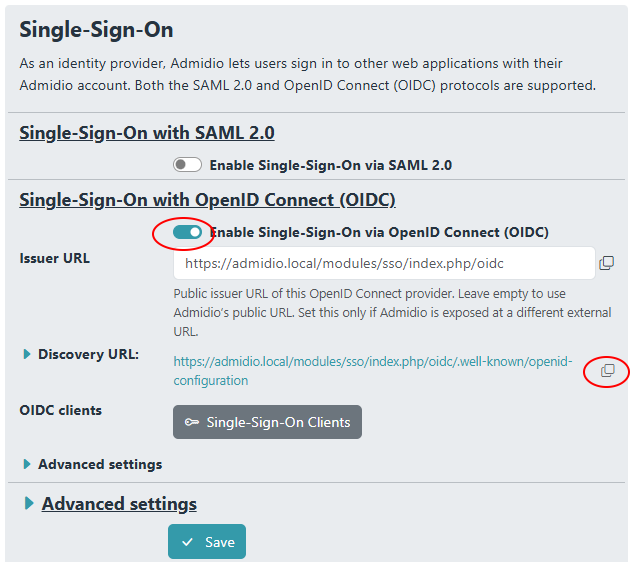
Basically, one needs to enable OpenID Connect (OIDC). The Issuer URL should in most cases be left blank, which means Admidio's public URL will be used as issuer URL.
The page https://admidio.local/adm_program/modules/preferences.php?panel=sso also provides the link to the automatic discovery URL, and the individual settings for clients that do not support auto-configuration via metadata.
Quick Overview
Setting up a client (OpenID „Relying Party“ = „RP“) to use Admidio's user accounts for log-in consists of two steps:
- The Mailman3 client (RP) needs to be set up with the data about the OpenID Provider (OP), which can be done by providing the Discovery URL.
- Admidio needs to be told about the client. In particular, the entity ID and the redirect URL must be given, and a custom-generated (random) secret must be copied to the client configuration.
The concrete steps are:
- At Mailman3 (the Relying Party (RP)) install/activate the extension to support OpenID login.
- Configure it with Admidio's Discovery URL in the settings. Mailman will retrieve all required settings there.
- Also, choose which scopes (groups of profile fields) should be requested from Admidio („openid“ is required; „groups“ are not supported, but other scopes like „profile“ and „email“ might be useful).
- In Admidio, create a new OpenID client.
- Choose an easily understood label for the client (only used in Admidio's list of clients, but has no technical use)
- Enter the ClientID from the RP, copy the created Client Secret, and enter the Redirect URI for the RP. The latter includes the provider_id and has the form
https://[YOUR_MAILMAN]/accounts/[PROVIDER_ID]/login/callback/. - Many open source OIDC clients do not support encryption (PKCE, which is a security mechanism that prevents attackers from obtaining access unless their application started the initial login). By default, PKCE is required by Admidio, so in this case make sure that the requirement checkbox is turned off. Otherwise you will get an error.
- In Admidio, map the user ID, username, email and fullname to fields that are included in the OpenID login response (so-called „claims“) and enter the corresponding claim names in Mailman3.
Mailman3 Login via OpenID using the django-allauth OpenID functionality
Setting up Mailman3 for OpenID login
Although Mailman3 already provides the OpenID login functionality, the corresponding backend needs to be enabled in the /opt/mailman-web/settings_local.py:
MAILMAN_WEB_SOCIAL_AUTH = [
    'allauth.socialaccount.providers.openid_connect',
]
Also make sure the /opt/mailman-web/urls.py contains the correct routes to the allauth plugin (usually this should already be set up):
urlpatterns = [
    ...
    path(r'accounts/', include('allauth.urls')),
    ...
]
Configuring the IdP settings for the Relying Party (Mailman3)
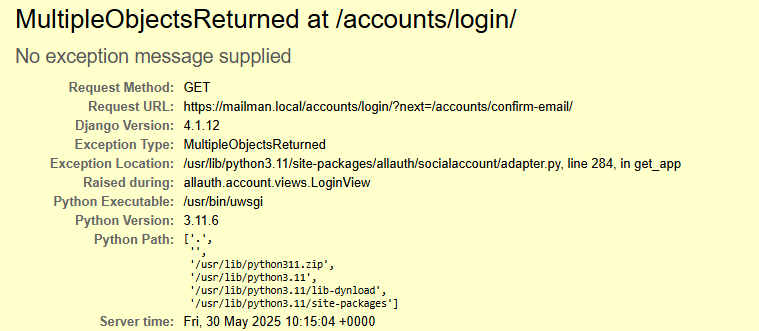
The OpenID Provider can be configured in Mailman3 either textually in the /opt/mailman-web/settings_local.py configuration file or via the graphic Django UI available at https://[YOUR_MAILMAN]/admin/. Both methods are equivalent. If you set up two (even identical) providers, an error message about duplicate objects will be triggered ('MultipleObjectsReturned at /accounts/login/').
- To set up the OpenID provider with the admin GUI, go to the Django admin backend
https://[YOUR_MAILMAN]/admin/and log in as Mailman admin.
- Go to the Accounts section and select „Social Apps“, where you can add a new OpenID provider through Admidio (see below where the individual settings can be copied from):
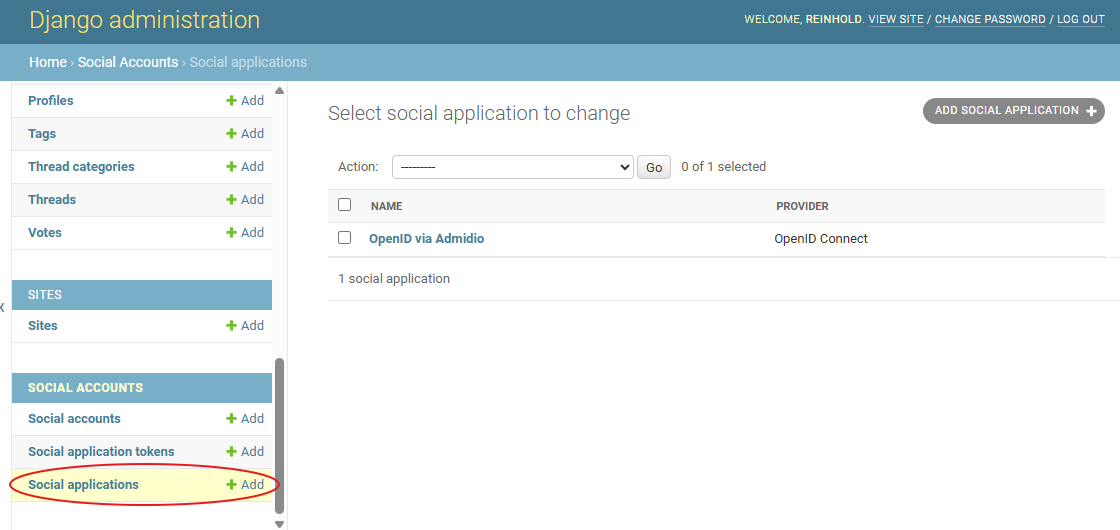
- It is now a good idea to keep two browser windows open with Admidio and Mailman3's configuration so one can easily select and copy the settings.
Setting up the Client (RP) in Admidio
Return to Admidio's SSO preferences page, go to the „Single-Sign-On Client Administration“ (the button right below the endpoint URLs and above the „Save“ button), and create a new client.
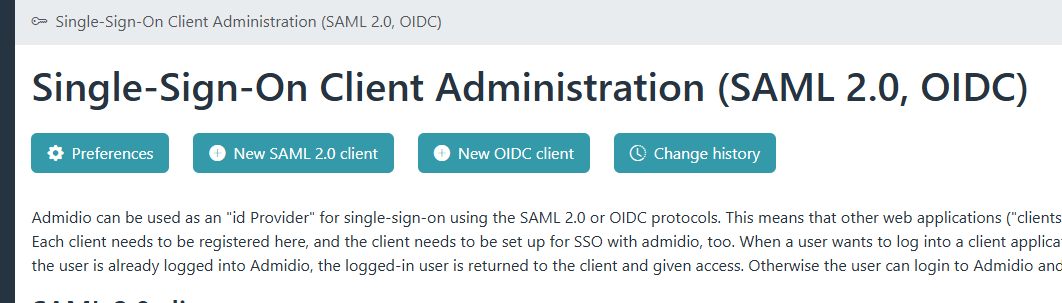
The settings in Mailman3's and Admidio's OpenID setup need to match. Most of the settings can be copied over from Admidio to Mailman3 or vice versa:
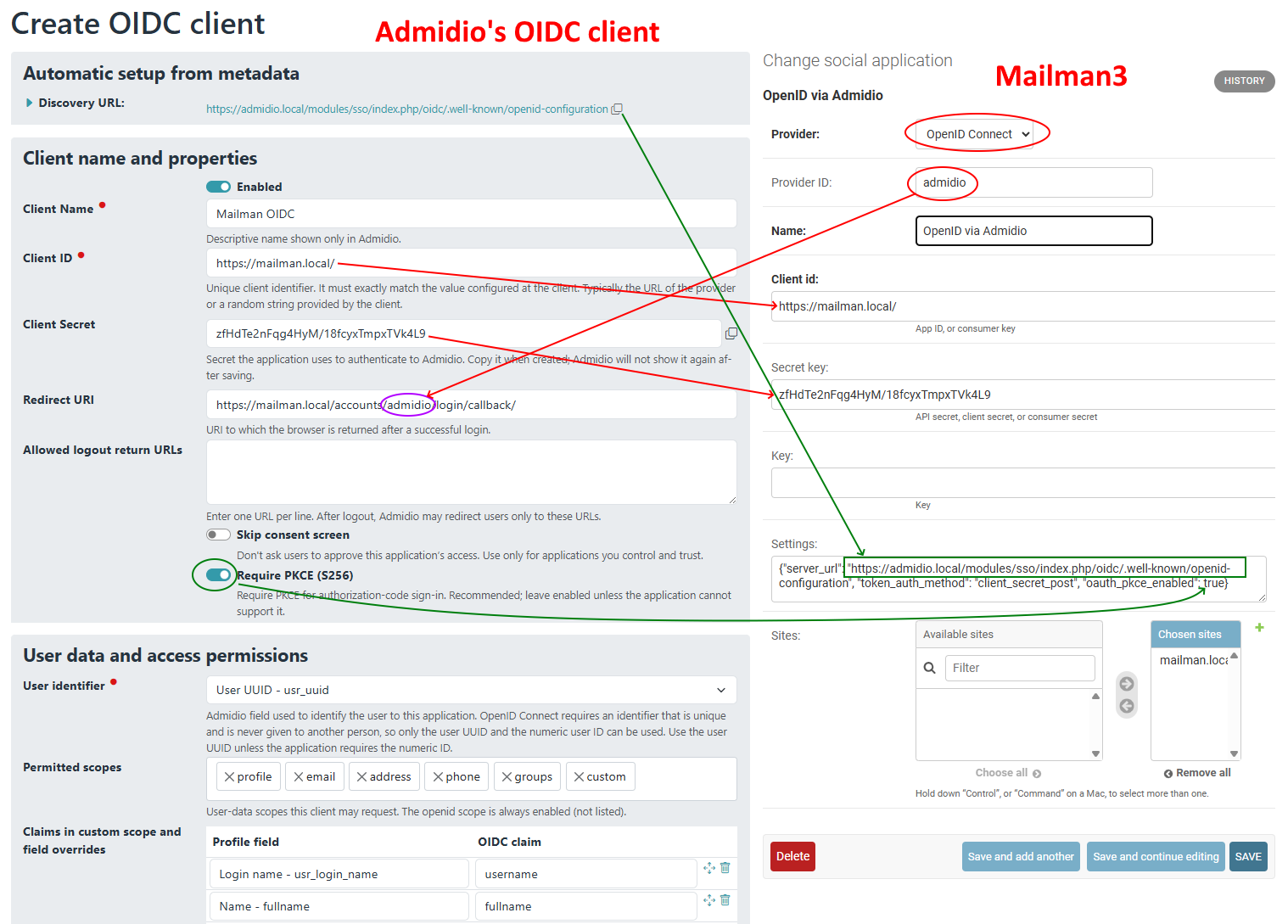
- The Client Name is the label of the client in Admidio's client list, it can be anything you like.
- The „Client ID“ and „Client Secret“ in Admidio and Mailman3 have to match exactly. The ID is typically the client's URL, although some clients allow any unique identifier. The Client Secret should a random string and will serve like a password. Admidio will create one and allow it to be copied to the client. Afterwards it is only stored as a hash in the database and not be recovered any more. However, one can create a new Client Secret in Admidio and copy that to the client's configuration.
- Copy over the Discovery URL from Admidio into Mailman3. Admidio provides little „copy“ icons for this. The URL needs to be entered in the Settings: field in the form:
{"server_url": "[DISCOVERY_URL]"} - Enter the scopes you desire in the Mailman3 config and make sure that Admidio's config matches it. At least openid must be included (Admidio will implicitly add it).
- In mailman, choose a provider_id, which will be part of the redirect URL that needs to be entered into Admidio. The Redirect URL for Admidio is:
https://[YOUR_MAILMAN]/accounts/[PROVIDER_ID]/login/callback/
- Enabling PKCE for increased security cannot fully be done in the UI. The
„oauth_pkce_enabled“: truesetting is only one part. The overall PKCE enablement must be done insettings_local.py:# PKCE must be configured here, not in the "Settings" field in the Django admin. # Note: no "APPS" key here on purpose -- the app is configured in the Django admin, and # declaring it in both places makes allauth fail with multiple matching apps. SOCIALACCOUNT_PROVIDERS = { "openid_connect": { "OAUTH_PKCE_ENABLED": True, } }
After saving the changes (both in Mailman3 and Admidio), the apps should should now be set up for single-sign-on in Mailman3.
Configuration in settings_local.py
Rather than the graphic setup in django's admin backend, one can also setup the OpenID provider in Mailman's settings_local.py. The corresponding entry to the above example is:
SOCIALACCOUNT_PROVIDERS = {
    "openid_connect": {
        "OAUTH_PKCE_ENABLED": True,
        "APPS": [
            {
                "provider_id": "admidio",
                "name": "OpenID via Admidio",
                "client_id": "https://mailman.local/",
                "secret": "zfHdTe2nFqg4HyM/18fcyxTmpxTVk4L9",
                "settings": {
                    "server_url": "https://admidio.local/modules/sso/index.php/oidc/.well-known/openid-configuration",
                    "token_auth_method": "client_secret_post",
                    "oauth_pkce_enabled": True,
                },
            },
        ]
    }
}
In this example, the pkce and token_auth settings are optional. For a list of all available options see the django-allauth documentation.
Setup completed, test Single-Sign-On
Admidio and Mailman3 should now be set up to use Admidio for logging in to Mailman3. If you log out of Mailman3 (or open an incognito browser window) and try to log in again, you will be shown the Admidio login screen and then redirected back to Mailman3 after a successful login.
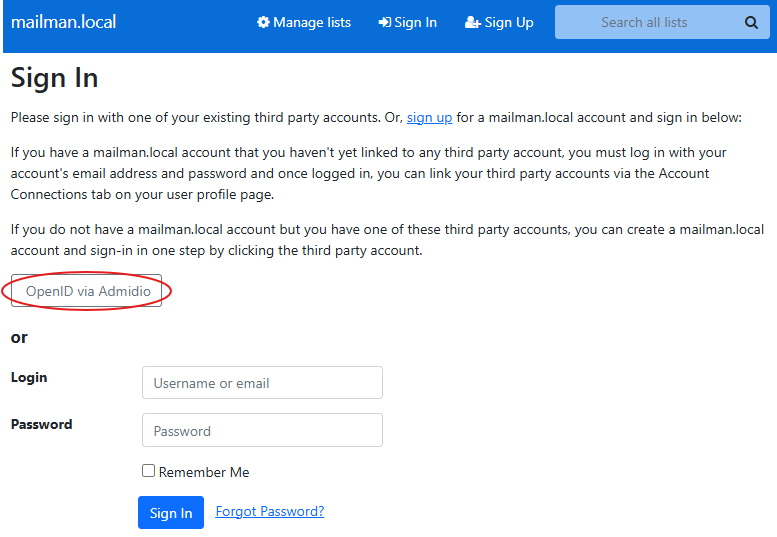
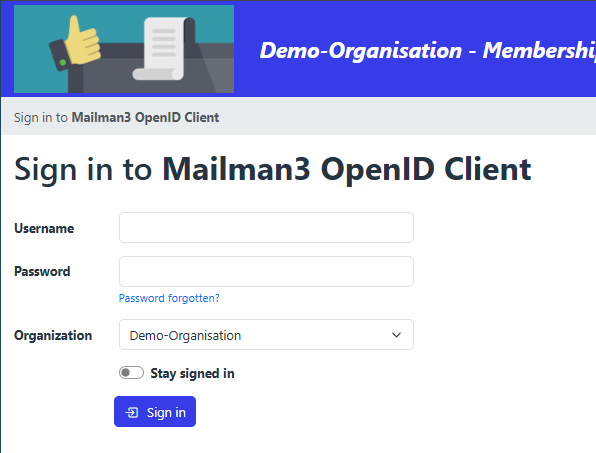
If a new account is created, one is asked to confirm the email adress.
On a successfull login, the connection to the OpenID account will be stored in the user profile. For existing Mailman users, one can connect the mailman account with an OpenID account in the profile, too:
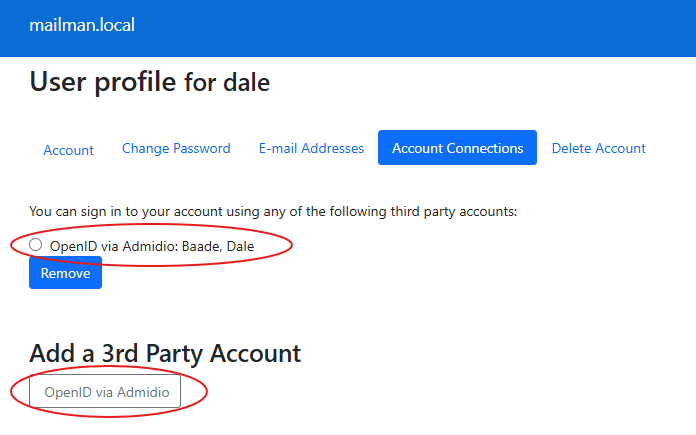
Caveats and Things to Consider
- Mailman currently only supports one OpenID provider at the same time. If you set up two or more providers, an error message about duplicate objects will be triggered ('MultipleObjectsReturned at /accounts/login/'). You need to remove (or comment out in
settings_local.py) all OpenID providers except for one.